There is a perception that Grammarly is just for students writing essays. But, with its recent AI glow-up, you’ll be pleasantly surprised by how Grammarly can be the ultimate writing partner for professionals, too! Here are six ways Grammarly can transform your chaotic, cluttered writing workflow into a streamlined productivity machine.
1. Brainstorm for Ideas Without Leaving Grammarly
Instead of opening a new tab, falling down a research rabbit hole, and wasting 20 minutes jumping between tabs and notes, you can now ask Grammarly for ideas through the built-in AI Chat.
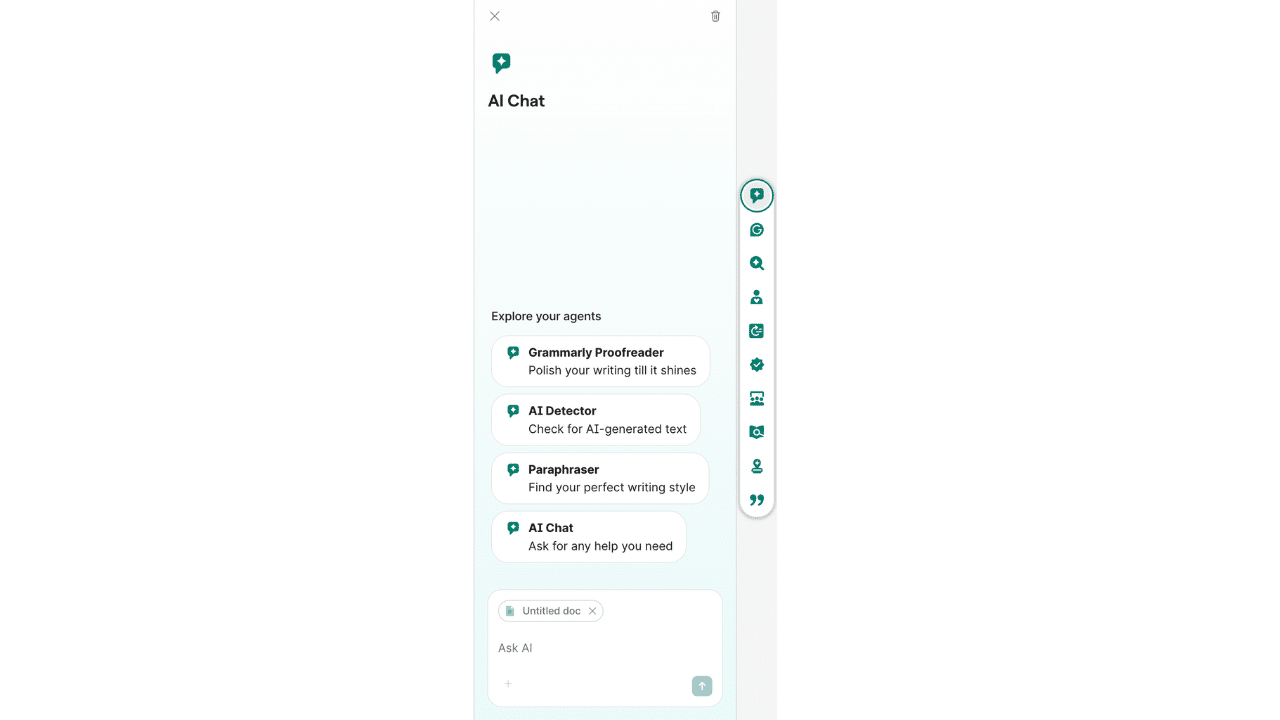
This AI feature, which is accessible from the new writing workspace called ‘Docs,’ can help you with creating a research plan, brainstorming, and everything in between.
2. Have Real-Time Suggestions to Improve Your Writing
Why wait until you finish your writing before proofreading? With Grammarly’s AI Proofreader, you can improve the clarity and correctness of your text on the fly.
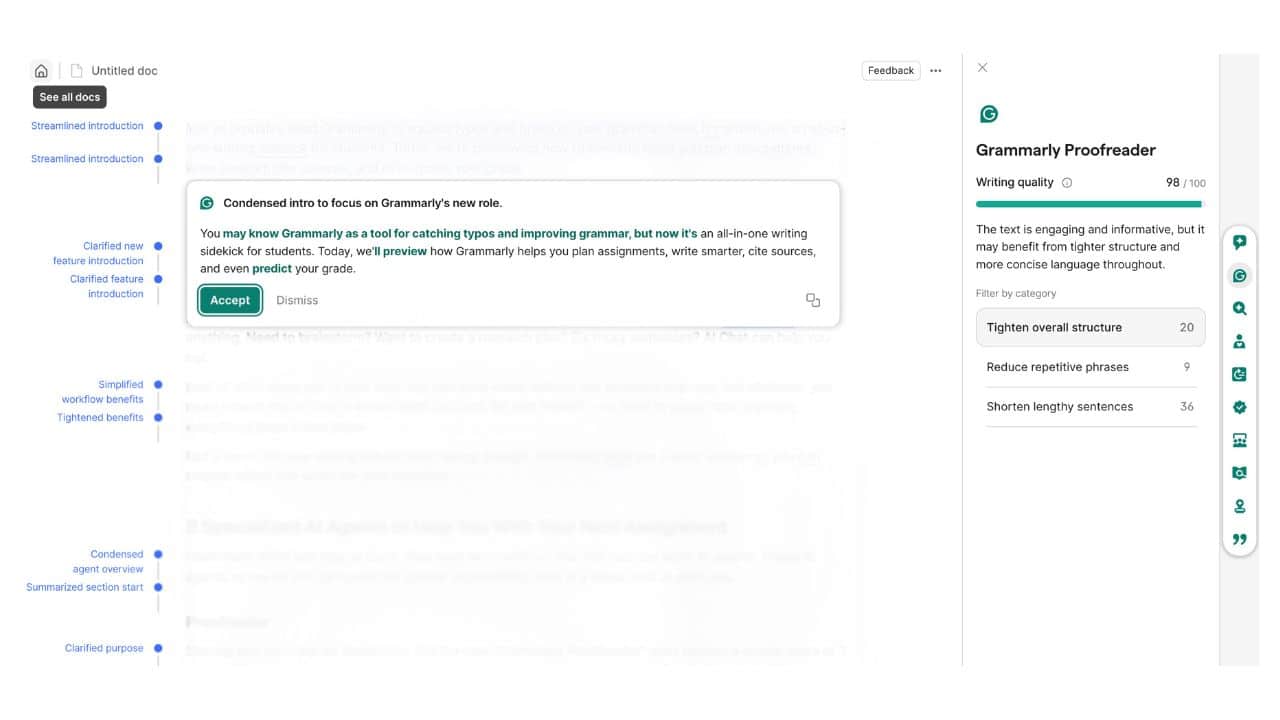
Simply click the ‘Proofreader’ on the right panel, and the AI will highlight problem areas, neatly organized by category, for a faster and non-intrusive review of its suggestions. And, yes, the AI’s suggestions can be dismissed and approved.
3. Say Goodbye to Robotic Writing
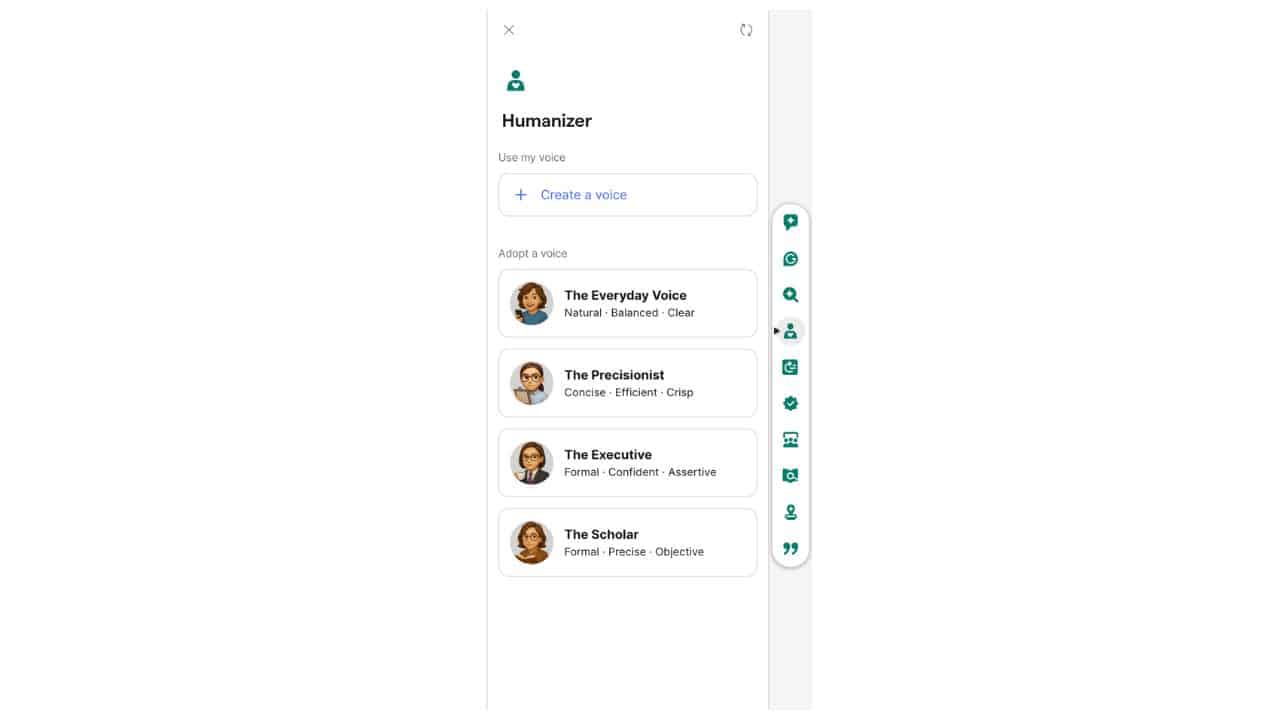
Think about sending a draft email that sounds perfectly correct but strangely lifeless. Grammarly’s Humanizer AI adds a much-needed warmth to your text, whether it’s for an email or a blog post.
The Humanizer AI feature, which is also accessible from the right panel of the Docs, allows you to select from four pre-built voices —The Perfectionist, The Everyday Voice, The Executive, and The Scholar. Each one offers a distinct style, allowing you to choose the one that best suits your text.
What if you don’t like any of the voices? There is an option for you to create your voice.
4. Change Your Writing Style and Tone
One minute you’re writing an update for leadership, the next you’re drafting a note for your team chat. That’s where Grammarly’s AI paraphaser steps in.

By choosing from the made styles Humanize, Academic, Professional, Streamlined, Creative, and Simple, you can make your draft adapt to the tone and purpose you need.
5. Get Feedback From Experts
What if you can tap into experts on your topic, use their concepts, and take inspiration to improve your text? Well, you can! Grammarly’s Expert Review evaluates your entire text, identifies subject-matter experts, and suggests edits from their perspective.

See How Readers React Before Publishing, or You Hit Send
Sending a message to a client or your boss without knowing how it will land is something every professional can relate to. Reader Reaction gives you that sneak peek, so you can adjust before pressing “send” and avoid those awkward misunderstandings.
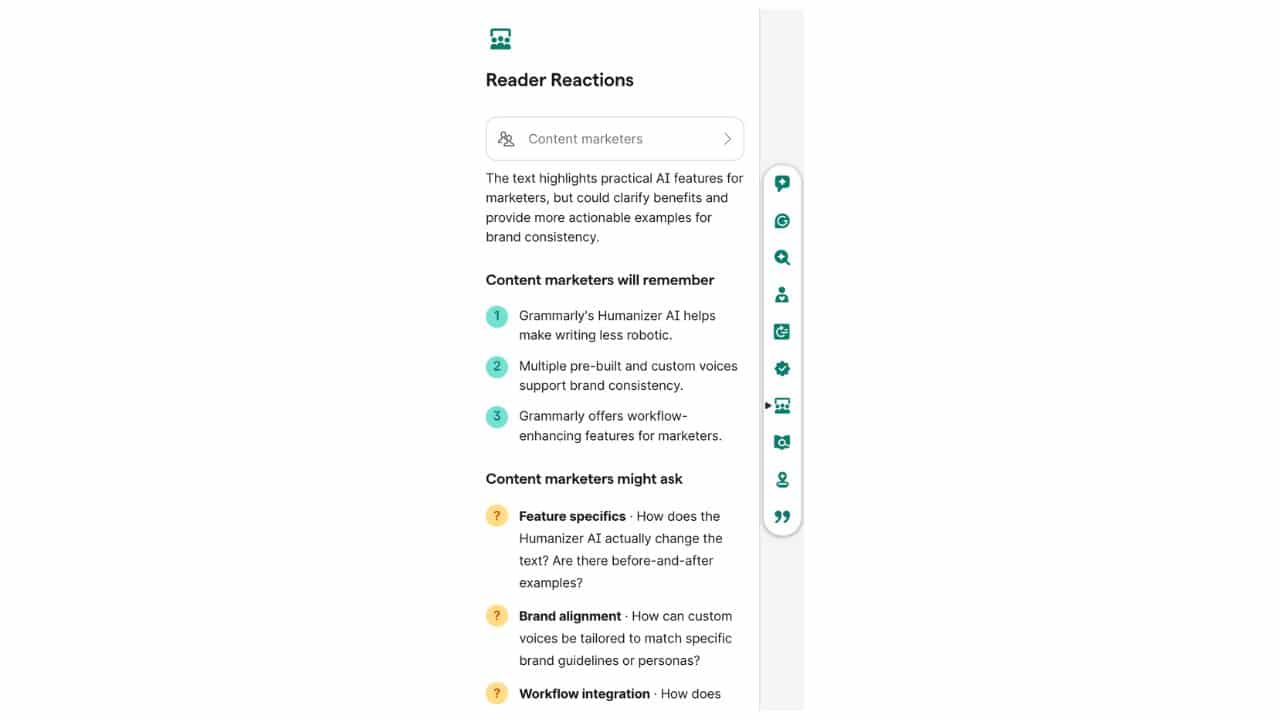
You start by choosing your text’s target audience, and the Reader Reaction AI will provide what readers will remember and what they might ask. And yes, you can always ignore a suggestion if you disagree.
Enjoy a Smoother Writing Workflow From Start to Finish
As you can see, Grammarly has become a workhorse that seamlessly fits into your everyday writing workflow. Whether it be the Humanizer AI or the clever Reader Reaction feature, there are more reasons to make the switch.