Whether you’re building your first gaming PC or you need to replace a component, this list of computer parts names can help you understand what goes inside.
Related:
Internal Computer Hardware
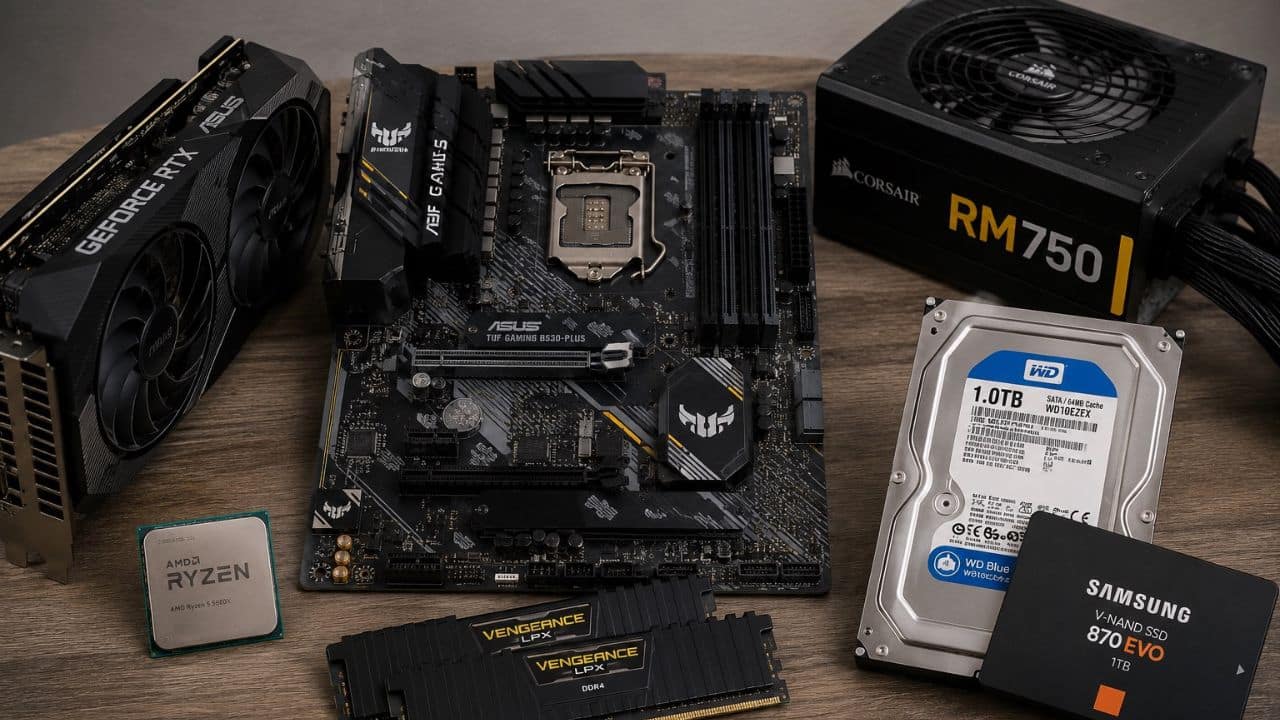
Computer parts are categorized into two: internal and external. Internal components are those that live inside your computer case. Each one has a specific job and placement, and they all need to work together for your PC to run smoothly.
Central Processing Unit (CPU)
The Central Processing Unit (CPU) is the heart or brain of every computer. This part processes every instruction your computer receives, from managing information flow and communication between programs to input and output operations to logical decisions.
If you are shopping for a new CPU, always consider the number of cores and clock speed. That’s because more cores and higher clock speeds mean smoother, faster, and more efficient multitasking. So, if you plan to game, edit videos, or multitask, this is one part you shouldn’t cut corners on.
Graphics Processing Unit (GPU)
Ever wondered what computer part is responsible for what you see on your monitor? It’s the Graphic Processing Unit (GPU). This component, as its name suggests, is responsible for handling visual processing.
Your PC can either have an integrated GPU (iGPU) or a dedicated GPU (dGPU). Although both have the same roles, an dGPU is a better choice because it has its own memory and processing power.
Motherboard
The motherboard is essentially a circuit board that your internal hardware connects to. It has slots for your CPU, RAM, PCEi, storage (M.2 slots and SATA ports), and power supply connectors.
Motherboards are available in different form factors. You have ATX, the standard full-size; Micro-ATX, the mid-sized option; and mini-ITX, the smallest.
Tip: If you are building a PC, make sure your motherboard is compatible with other internal components and fits inside your chosen computer case.
Random Access Memory (RAM)
Every time you open a web browser or a document, your computer retrieves the information from your storage (Solid State Drive or Hard Drive) and places it in your RAM.
As you type, scroll, or even edit images, your CPU makes these changes directly in the RAM. So, the more RAM you have, the faster you can switch between games, browser tabs, and apps.
Insight: RAM prices have recently increased due to the AI boom.
Hard Disk Drive (HDD)
Speaking of HDDs, these are where your photos, videos, documents, and games permanently live. And yes, they don’t get erased every time you shut down your PC (unless you delete them, of course).
If you need plenty of storage without spending a lot, an HDD is still a practical choice. It may not load files as quickly as newer storage options, but it offers plenty of space for the price.
Solid State Drive (SSD)
An SSD is one of the best upgrades you can do to make your computer feel faster. An SSD has no moving parts, so your games, apps, and operating system load faster. This is why most newer gaming computers use an SSD for their primary storage drive.
Sound Card
A sound card has one role: to convert digital signals into analog. If you mostly browse the web or play casual games, the built-in sound card on your motherboard is more than enough. Alternatively, you can connect an external Digital-to-Analog Converter (DAC) and AMP combo for immersive sound quality.
Network Interface Card (NIC)
What’s the computer part responsible for connecting your PC to the internet? It’s called a Network Interface Card (NIC).
Most motherboards have a built-in NIC, but you can upgrade it if you need faster speeds or more reliable connections for gaming, streaming, or large file transfers.
Peripheral Component Interconnect Express (PCIe) Slots
One of the coolest things about a desktop computer is that you can improve it over time instead of buying a new one. And PCI Express (PCIe) slots make that possible by letting you install upgrades such as graphics cards, Wi-Fi adapters, capture cards, or storage devices. You can find them in different sizes, but they all serve the same purpose: giving your computer room to grow as your needs change.
Expansion Slots Ports (USB, HDMI)
Everything you plug into your computer goes into an expansion slot port. USB ports connect devices such as keyboards, mice, flash drives, printers, and external hard drives. In contrast, HDMI ports transmit both video and audio to a monitor or TV over a single cable.
Power Supply Unit (PSU)
Power Supply Unit (PSU) converts wall-outlet electricity into the right amount of power for each internal component, keeping everything running safely and reliably. A quality PSU can also help protect your computer from power fluctuations.
External Computer Components
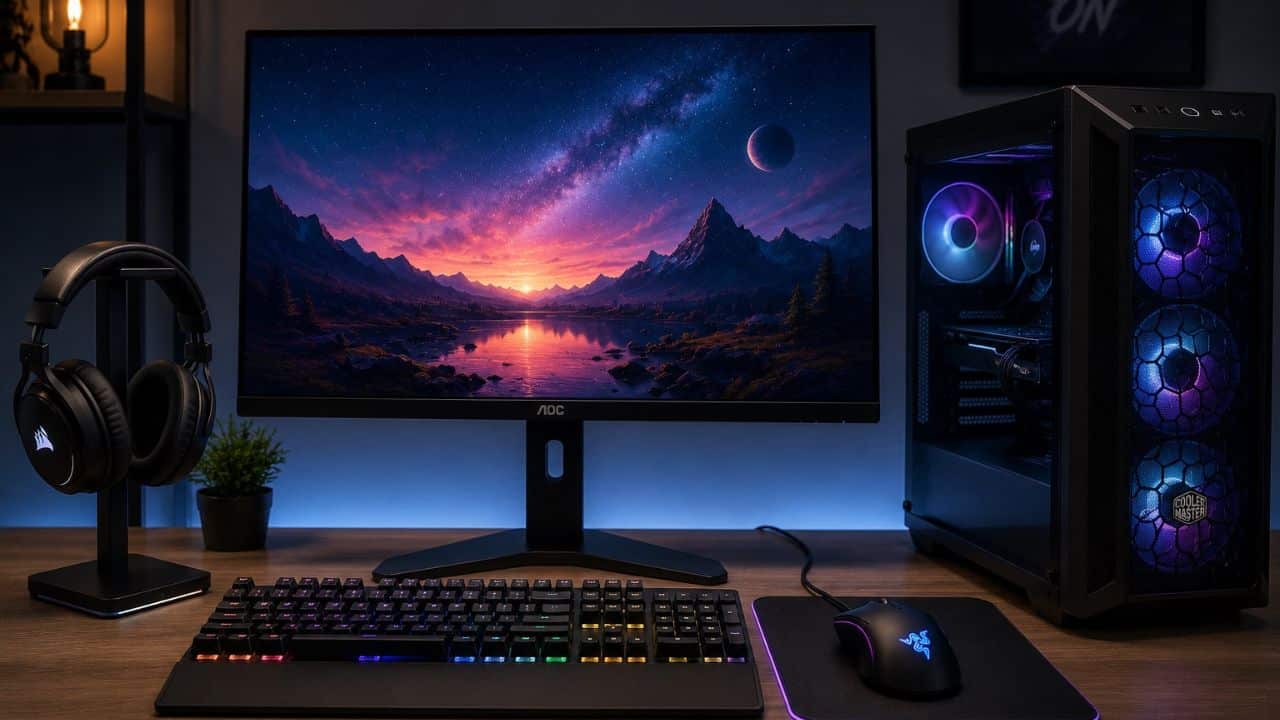
Not all the important computer parts are hidden inside the case. The external devices work as your everyday tools, helping you use your computer more comfortably and efficiently.
Computer Case
A computer case does more than hold all the internal hardware components together. It also protects them from dust and accidental damage, while allowing air to flow through the system to keep components cool.
When choosing a case, remember to take into account future upgrades, airflow, and cable management.
Headphones
Now, if you want to listen to music without disturbing those around you, headphones are a must-have. If you also need a microphone, there are some models with a built-in mic.
Monitor
Remember the GPU earlier? It outputs the graphics or visuals to your monitor. There are different monitor panels to choose from. You have IPS, VA, TN, IPS, OLED, QD-OLED, and mini-LED. For gaming, most consumers prioritize lower latency and higher refresh rates.
Keyboard
A standard keyboard has 104 keys (called full-size), and typically costs around $15 or more. If you don’t need the function row or the numpad, a 65% or a 75% keyboard would be a better option.
Mouse
Another important computer peripheral is the mouse. It lets you click, drag, and scroll with precision, making everything from browsing the web to editing documents easier. A standard mouse typically has only left and right buttons and a scroll wheel, but newer models have more.
More Computer Parts Names
- CPU Cooler / Heatsink
- Case fans
- Liquid cooling radiator
- Wecam
- Capture card
- Power cables
- SATA cables
- Motherboard standoffs
- CMOS battery